
With a Stewardship Partner Account for Churches and Charities, you can confidently track payments and access reports enabling you to steward your church or charity’s finances well. By logging into your account, you can view payments, obtain information on supporters, and gather up-to-date financial information with just a few straightforward clicks. Reports can be easily downloaded providing everything you need to reconcile your accounts efficiently.
Use the ‘Activity’ section to view financial information on the account, click ‘Insights’ to develop an understanding of your supporters and select ‘Fundraising’ to keep track of any donation and fundraising pages.
Check out how you can make the most of your Partner Account by familiarising yourself with our tools.
Activity
Use the ‘Activity’ button on your active dashboard to keep track of your Partner Account for Churches and Charities.
Here you can view three different types of reporting: ‘Transactions’, ‘Recent changes’, and ‘Payments’:
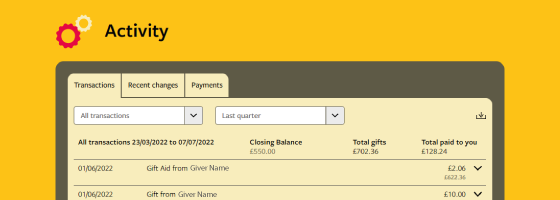
> Transactions - Use this tab to view gifts by transaction type and date range. The filters conveniently allow selection by type of gift and relevant dates and once selected, a list of transactions can be downloaded ready for use. This function helpfully provides a comprehensive report showing all payments within a selected timeframe, which may be useful when preparing quarterly reports or if you need to access information on gifts made within a specific time period.
To download a transactions report, login to your Partner Account, click ‘Activity’ in the top bar of the dashboard, then select the ‘Transactions’ tab and use the filters. Once you have made your selection scroll down and hit ‘download’.
> Recent changes - Click here to view recent gift changes. The downward arrow provides extra information on changes made.
To download a recent changes report, login to your Partner Account, click ‘Activity’ in the top bar of the dashboard, then select the ‘Recent changes’ tab.
> Payments – You will receive an email notification when we make a payment to your bank account and this tab will enables you to view details of the payment. You can view payments for a particular ‘Project’ or for ‘General Funds’ and payments can be downloaded into a spreadsheet, providing an easy and simple method of identifying the gift amount and gift aid. This report will help you reconcile your accounts and, by downloading payment reports regularly, you will ensure you keep on top of gifts received.
To download a payments report, login to your Partner Account, click ‘Activity’ in the top bar of the dashboard, then select the ‘Payments’ tab. Use the filters to select date range and projects and then hit ‘download’.
Insights
Use the ‘Insights’ button on the active dashboard to gain an overall picture of gifts, regular supporters, and one-off supporters.
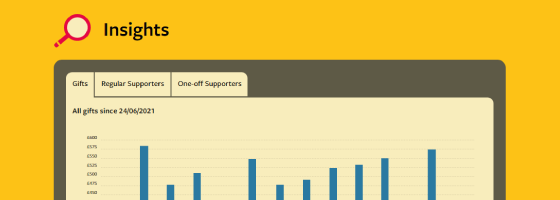
> Gifts – Access an easy-to-understand bar graph which illustrates a breakdown of monthly gifts received. Why not use this graph when preparing a finance update or at your AGM. Simply take a screengrab on your computer and you will have an instant visual breakdown of gifts received.
To download a graph of monthly gifts, login to your Partner Account, click ‘Insights’ in the top bar of the dashboard, then select the ‘Gifts’ tab.
> Regular supporters & one-off supporters – Collate information on givers, which can be filtered by projects. Here you can quickly access givers’ contact information (if the giver hasn’t elected to be anonymous). Handy when updating givers or simply when you need to send a thank you!
To download information about your regular givers, login to your Partner Account, click ‘Insights’ in the top bar of the dashboard, then select the ‘Regular Supporter’ tab. Use the filters to select projects or general funds.
Fundraising
Use the ‘Fundraising’ button on the active dashboard to view information relating to a particular donation and/or fundraising page.
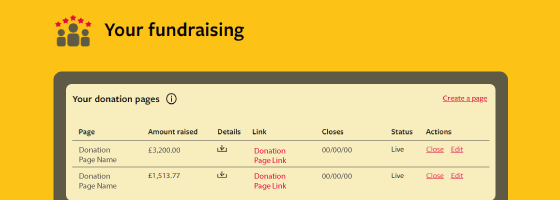
This page helpfully sets out details of your fundraising and donation pages. You can instantly identify amounts raised and the details column provides a download link which enables you to download a report for a particular page. In the case of fundraising pages, you can even access comments made by supporters enabling you to keep up to date with your fundraising campaigns and appeals.
To download reports on donation or fundraising pages login to your Partner Account for Churches and Charities, click ‘Fundraising’ in the top bar of the dashboard, to view your pages.
We hope you found this article useful for making the most of your Partner Account for Churches and Charities. If you would like any further guidance on using your account, please contact our Church and Charity team who would be delighted to assist you.

Shobi Selvadurai
Shobi was a Church and Charity Customer Support Executive until 2022. In her role, Shobi provided advice and customer support to Stewardship church and charity partners. Prior to this, Shobi trained and worked as a local authority solicitor and then joined the staff team at her local church where she served for six years.
Shobi lives in South West London with her husband, three teenage daughters, and their lively cocker spaniel. They worship at their local church where Shobi serves as a Sunday school leader. She has a real desire for children and young people to learn about Jesus and in the past has enjoyed running and leading church holiday clubs and cooking on Christian summer camps. Shobi is passionate about evangelism and enjoys reading and studying the Bible with people.